
Linux
Comprehensive Guide to Linux Package Managers
Comprehensive Guide to Linux Package Managers This guide provides a detailed overview of popular package managers used across various Linux distributions, along with installation examples and options for installing...
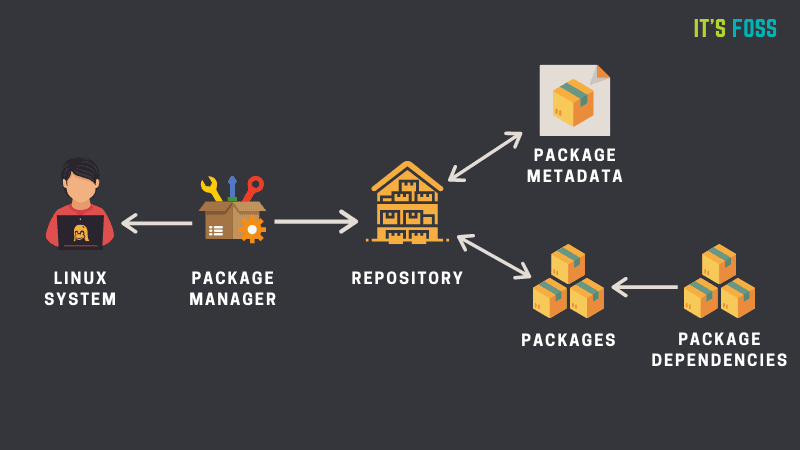
Comprehensive Guide to Linux Package Managers
This guide provides a detailed overview of popular package managers used across various Linux distributions, along with installation examples and options for installing software directly from source. Understanding package managers is essential for installing, upgrading, and managing software on Linux systems.
📦 Package Managers by Distribution
| Distribution | Package Manager(s) | Installation Example | Alternative(s) |
|---|---|---|---|
| Debian / Ubuntu | apt, apt-get, dpkg | sudo apt install libreoffice | sudo apt-get install libreoffice, sudo dpkg -i whois_5.4.2_amd64.deb |
| Red Hat / CentOS / Fedora / Rocky / Alma | dnf (current), rpm, yum (deprecated) | sudo dnf install libreoffice | sudo rpm -i libreoffice.rpm, sudo yum install libreoffice |
| Slackware | slapt-get, pkgtool | slapt-get -i openoffice | pkgtool -i openoffice, installpkg openoffice.tgz, upgradepkg --install-new openoffice.tgz |
| Arch / Manjaro | pacman | sudo pacman -S libreoffice | None |
| openSUSE | zypper | sudo zypper install libreoffice | None |
🧰 Installing Software from Source
For software that isn’t available through the package manager or requires specific compilation options, installing from source is a versatile option. This approach is common for custom builds or the latest versions not yet available in standard repositories.
1. Install Development Tools
The first step in building software from source is ensuring that the system has the necessary development packages installed.
- Debian-based systems:
sudo apt install build-essential checkinstall libcurl-devel- RHEL-based systems:
sudo dnf group install -y "Development tools"2. Extract the Source Archive
Download and extract the software archive (e.g., .tar.gz format):
tar -xzvpf example.tar.gz3. Navigate to the Extracted Folder
Change to the directory created by extracting the archive:
cd example/4. Prepare the Build Configuration
If the source folder doesn’t include a ./configure script, you may need to generate it, especially if the software was cloned from a source repository like Git.
- If an
autogen.shfile is available, run:
./autogen.sh- If no
autogen.shfile is present, you might need to create a configuration file:
make configure5. Run the Configuration Script
Configure the installation settings, specifying the installation directory if necessary:
./configure --prefix=/usr/local6. Compile and Install the Software
Build and install the software. This will compile the source code and place the binary files in the specified directory.
sudo make install7. Verify the Installation
After installation, verify that the program is accessible by checking its version or running the executable:
/usr/local/bin/example --versionNote: As an alternative to
make install, Ubuntu users can usecheckinstallfor simpler package management. More information is available here.
Understanding these package managers and how to compile software from source provides Linux users with flexible control over software installations across a range of distributions.