
Plesk
How to clean up temporary Plesk files on a Linux server
How to clean up temporary Plesk files on a Linux server 🐧 Applicable to: Plesk for Linux ❓ Question How can I clean up temporary Plesk files on a Linux server to free up disk space? ✅ Answer There are two safe...
How to clean up temporary Plesk files on a Linux server
🐧 Applicable to: Plesk for Linux
❓ Question
How can I clean up temporary Plesk files on a Linux server to free up disk space?
✅ Answer
There are two safe methods to remove temporary Plesk files on a Linux server.
⚠️ Note: Cleaning up temporary Plesk files may not free up substantial disk space. If your server is already low on disk space, this solution may only provide limited relief.
Steps for Removing Temporary Files Using the Plesk Repair Kit
-
Open the Plesk Repair Kit:
- In your browser, go to the following URL:
https://<your-server-IP-or-hostname>:8443/repair/. - Example:
https://203.0.113.2:8443/repair/. - Replace
<your-server-IP-or-hostname>with your actual server’s IP address or hostname.
- In your browser, go to the following URL:
-
Log In:
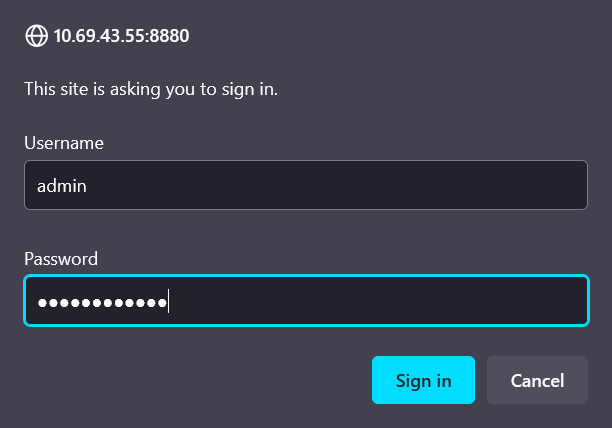
- Enter your Plesk Administrator credentials in the Username and Password fields.
- Click Sign In to access the Plesk Repair Kit.
-
Clean Temporary Files:
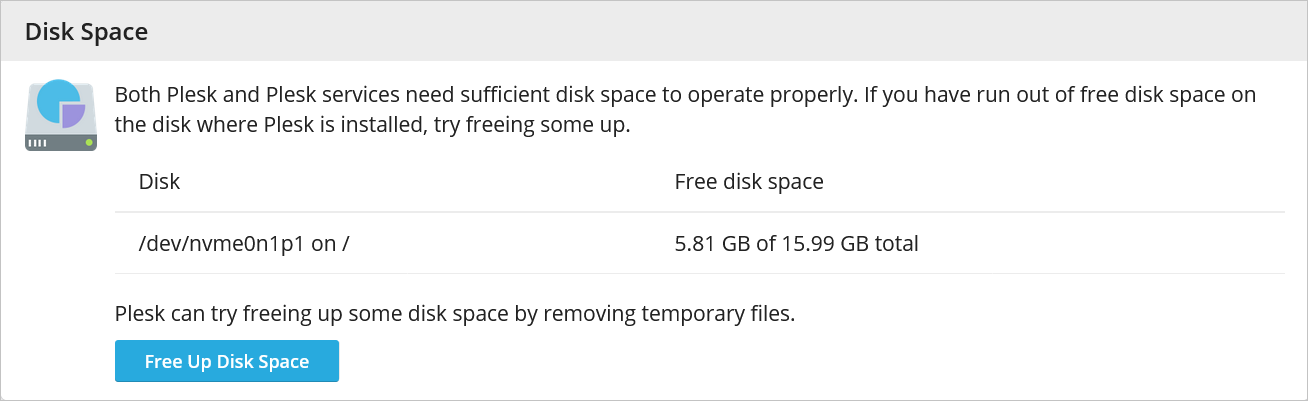
- After logging in, click the Free Up Disk Space button to remove temporary files.
- This action clears unnecessary files, optimizing your server’s storage and performance.
- After logging in, click the Free Up Disk Space button to remove temporary files.
For further details on using the Plesk Repair Kit, refer to the official Plesk documentation here.
This procedure allows for a straightforward cleanup of temporary files, helping to maintain server efficiency.
Removing tmp files via a command-line interface
-
Connect to the Plesk Server via SSH:
- Use an SSH client to access your Plesk server.
-
Remove Old Temporary Files:
- To delete temporary files that are older than a specified number of days (e.g., 14 days) from the
/tmpand/var/tmp/directories, use the following commands:
bash
find /tmp -type f -mtime +14 -exec rm {} ;

find /var/tmp -type f -mtime +14 -exec rm {} ;
- These commands will locate and delete files older than 14 days in the specified directories.
- To delete temporary files that are older than a specified number of days (e.g., 14 days) from the
-
Remove Temporary Files Created by Plesk and Its Services:
-
Important: Run these commands only when there are no active Plesk Installer or Plesk backup tasks on the server to avoid potential conflicts.
-
Delete Temporary Plesk Backup Files:
bash
rm -rf /usr/local/psa/PMM/tmp/*
-
Delete Other Plesk Temporary Files:
bash
rm -rf /usr/local/psa/tmp/*
-
Following these steps will help keep your server clean by removing outdated and unnecessary files.
-
Open the Plesk Repair Kit:
- In your browser, go to the following URL:
https://<your-server-IP-or-hostname>:8443/repair/. - Example:
https://203.0.113.2:8443/repair/. - Replace
<your-server-IP-or-hostname>with your actual server’s IP address or hostname.
- In your browser, go to the following URL:
-
Log In:
- Enter your Plesk Administrator credentials in the Username and Password fields.
- Click Sign In to access the Plesk Repair Kit.
-
Clean Temporary Files:
- After logging in, click the Free Up Disk Space button to remove temporary files.
- This action clears unnecessary files, optimizing your server’s storage and performance.
- After logging in, click the Free Up Disk Space button to remove temporary files.
For further details on using the Plesk Repair Kit, refer to the official Plesk documentation here.
This procedure allows for a straightforward cleanup of temporary files, helping to maintain server efficiency.
-
Connect to the Plesk Server via SSH:
- Use an SSH client to access your Plesk server.
-
Remove Old Temporary Files:
- To delete temporary files that are older than a specified number of days (e.g., 14 days) from the
/tmpand/var/tmp/directories, use the following commands:
bash
find /tmp -type f -mtime +14 -exec rm {} ;

find /var/tmp -type f -mtime +14 -exec rm {} ;
- These commands will locate and delete files older than 14 days in the specified directories.
- To delete temporary files that are older than a specified number of days (e.g., 14 days) from the
-
Remove Temporary Files Created by Plesk and Its Services:
-
Important: Run these commands only when there are no active Plesk Installer or Plesk backup tasks on the server to avoid potential conflicts.
-
Delete Temporary Plesk Backup Files:
bash
rm -rf /usr/local/psa/PMM/tmp/*
-
Delete Other Plesk Temporary Files:
bash
rm -rf /usr/local/psa/tmp/*
-
Following these steps will help keep your server clean by removing outdated and unnecessary files.