
Plesk
How to remove Plesk backup files and their logs
How to remove Plesk backup files and their logs Removing backups existing in Plesk Via Plesk In Plesk, go to Tools & Settings > Backup manager (server-wide backups) or Websites & Domains > Backup Manager (domain...

How to remove Plesk backup files and their logs
Removing backups existing in Plesk
Via Plesk
In Plesk, go to Tools & Settings > Backup manager (server-wide backups) or Websites & Domains > Backup Manager (domain backups).
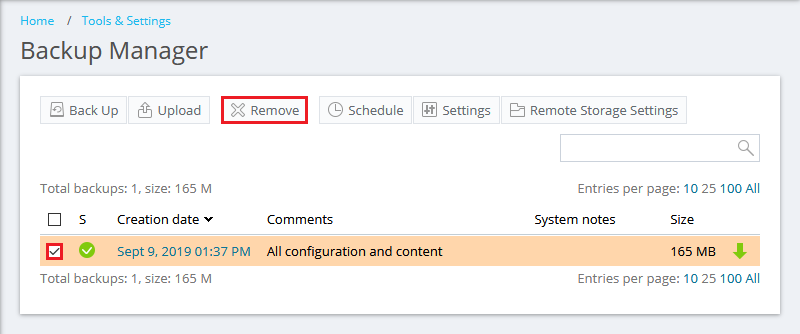
Choose a backup that should be deleted and click Remove. Backup files will be also removed from the system.
Via a command-line interface
For Plesk on Linux
Connect to a Plesk server via SSH.
Find the backup_infoXXXX.xml file using a backup creation date:
# /usr/local/psa/admin/bin/pmm-ras –get-dump-list | grep .xml:
In this example, the domain level backup was created on 10.08.2019 (19.08.10):
# /usr/local/psa/admin/bin/pmm-ras –get-dump-list | grep .xml:
<message>domains/example.com/backup_info_1908101555.xml: </message>Delete the backup by specifying the corresponding *.xml file. For example:
# /usr/local/psa/admin/bin/pmm-ras –verbose –debug –delete-dump –dump-specification=backup_info_1908101555.xml –session-path=/var/log/plesk/PMM
For Plesk Obsidian on Windows Server
Connect to a Plesk server via RDP.
Find the backup_infoXXXX.xml file using a backup creation date:
C:> “%plesk_bin64%”pmm-ras.exe –get-dump-list | findstr .xml:
In this example, the domain level backup was created on 22 July 2020:
C:> “%plesk_bin64%”pmm-ras.exe –get-dump-list | findstr .xml:
<message>backup_info_2007220826.xml: </message>If Plesk was installed into a custom location, replace C:Program Files (x86) in the command above with the custom location
Remove the backup by specifying the corresponding *.xml file. For example:
C:> “%plesk_bin64%”pmm-ras.exe –verbose –debug –delete-dump –dump-specification=backup_info_2007220826.xml
For Plesk Onyx or earlier on Windows Server
Connect to a Plesk server via RDP.
Find the backup_infoXXXX.xml file using a backup creation date:
C:>”%plesk_bin%/pmm-ras” –get-dump-list | findstr .xml:
In this example, the domain level backup was created on 10.08.2019 (19.08.10):
C:>”%plesk_bin%/pmm-ras” –get-dump-list | findstr .xml:
<message>domains/example.com/backup_info_1908101555.xml: </message>Remove the backup by specifying the corresponding *.xml file. For example:
C:> “%plesk_bin%pmm-ras.exe” –verbose –debug –delete-dump –dump-specification=backup_info_1908101555.xml –session-path=”%plesk_dir%PMM”
Removing old backup logfiles (Linux)
Connect to a Plesk server via SSH.
Delete directories with old backup files created before a desired date from
/var/log/plesk/PMM/:# find /var/log/plesk/PMM/ -name ‘backup*’ -type d -ctime +XX -exec rm -rf {} +;
where XX is a number of days before the current date.
Removing backups that are not shown in Plesk, but exist physically on a server (Linux)
Connect to a Plesk server via SSH.
Delete backup directories and files created before a desired date from
/var/log/plesk/PMM/and/var/lib/psa/dumps:Remove backup logfiles:
# find /var/log/plesk/PMM/ -name ‘backup*’ -type d -ctime +XX -exec rm -rf {} +;
Remove backup files:
# find /var/lib/psa/dumps -name ‘backup*’ -ctime +XX -exec rm -rf {} +;
where XX is a number of days before the current date.
Via Plesk
In Plesk, go to Tools & Settings > Backup manager (server-wide backups) or Websites & Domains > Backup Manager (domain backups).
Choose a backup that should be deleted and click Remove. Backup files will be also removed from the system.
Via a command-line interface
For Plesk on Linux
Connect to a Plesk server via SSH.
Find the backup_infoXXXX.xml file using a backup creation date:
# /usr/local/psa/admin/bin/pmm-ras --get-dump-list | grep .xml:
In this example, the domain level backup was created on 10.08.2019 (19.08.10):
# /usr/local/psa/admin/bin/pmm-ras --get-dump-list | grep .xml:
<message>domains/example.com/backup_info_1908101555.xml: </message>Delete the backup by specifying the corresponding *.xml file. For example:
# /usr/local/psa/admin/bin/pmm-ras --verbose --debug --delete-dump --dump-specification=backup_info_1908101555.xml --session-path=/var/log/plesk/PMM
For Plesk Obsidian on Windows Server
Connect to a Plesk server via RDP.
Find the backup_infoXXXX.xml file using a backup creation date:
C:> "%plesk_bin64%"pmm-ras.exe --get-dump-list | findstr .xml:
In this example, the domain level backup was created on 22 July 2020:
C:> "%plesk_bin64%"pmm-ras.exe --get-dump-list | findstr .xml:
<message>backup_info_2007220826.xml: </message>If Plesk was installed into a custom location, replace C:Program Files (x86) in the command above with the custom location
Remove the backup by specifying the corresponding *.xml file. For example:
C:> "%plesk_bin64%"pmm-ras.exe --verbose --debug --delete-dump --dump-specification=backup_info_2007220826.xml
For Plesk Onyx or earlier on Windows Server
Connect to a Plesk server via RDP.
Find the backup_infoXXXX.xml file using a backup creation date:
C:>"%plesk_bin%/pmm-ras" --get-dump-list | findstr .xml:
In this example, the domain level backup was created on 10.08.2019 (19.08.10):
C:>"%plesk_bin%/pmm-ras" --get-dump-list | findstr .xml:
<message>domains/example.com/backup_info_1908101555.xml: </message>Remove the backup by specifying the corresponding *.xml file. For example:
C:> "%plesk_bin%pmm-ras.exe" --verbose --debug --delete-dump --dump-specification=backup_info_1908101555.xml --session-path="%plesk_dir%PMM"
Connect to a Plesk server via SSH.
Delete directories with old backup files created before a desired date from
/var/log/plesk/PMM/:# find /var/log/plesk/PMM/ -name 'backup*' -type d -ctime +XX -exec rm -rf {} +;
where XX is a number of days before the current date.
Connect to a Plesk server via SSH.
Delete backup directories and files created before a desired date from
/var/log/plesk/PMM/and/var/lib/psa/dumps:Remove backup logfiles:
# find /var/log/plesk/PMM/ -name 'backup*' -type d -ctime +XX -exec rm -rf {} +;
Remove backup files:
# find /var/lib/psa/dumps -name 'backup*' -ctime +XX -exec rm -rf {} +;
where XX is a number of days before the current date.