
Linux
Resetting the Root Password on a IONOS VPS or Migrated Cloud Server (Debian and Ubuntu)
Resetting the Root Password on a VPS or Migrated Cloud Server (Debian and Ubuntu) For Linux VPS and migrated Cloud Servers with Debian 11, Debian 12, Ubuntu 22.04, and Ubuntu 24.04, managed in Cloud Panel....
Resetting the Root Password on a VPS or Migrated Cloud Server (Debian and Ubuntu)
For Linux VPS and migrated Cloud Servers with Debian 11, Debian 12, Ubuntu 22.04, and Ubuntu 24.04, managed in Cloud Panel.
Introduction
This guide explains how to reset the root password for a VPS or migrated cloud server running Debian or Ubuntu.
Caution: Improper execution of these steps could lead to data loss. Always ensure a backup is created before starting the process.
Prerequisites
- Server State: Ensure the server is switched on.
- Backup: A current backup of the server must be created.
Step 1: Load the Rescue System
- Navigate to the Server & Cloud section.
- If you have multiple server contracts, select the correct contract.
Log in to the IONOS Cloud Panel
- Go to Infrastructure > Server.
- Click the DVD drive and activate the latest GParted ISO.
- Click Load DVD and confirm with Yes.
Activate GParted ISO
Restart and Boot into Rescue System
- After the server restarts, select Actions > Open remote console.
- In the boot menu, choose GParted Live (Default Settings).
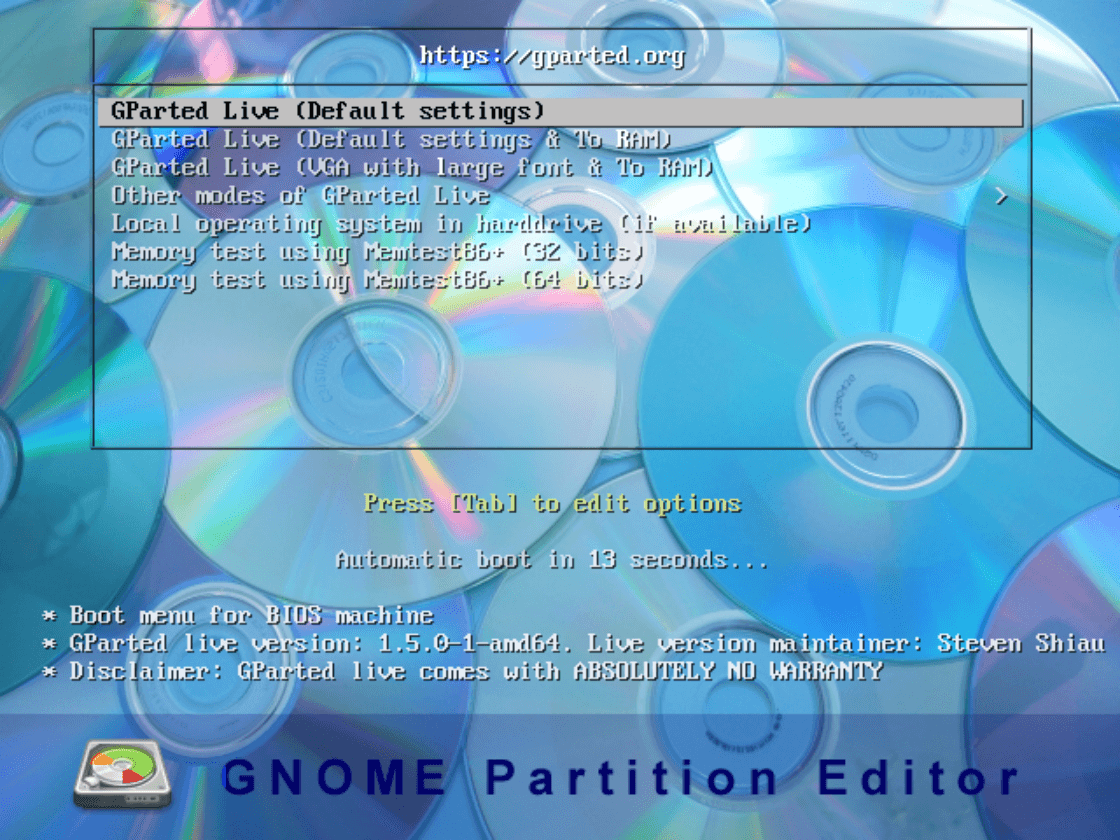
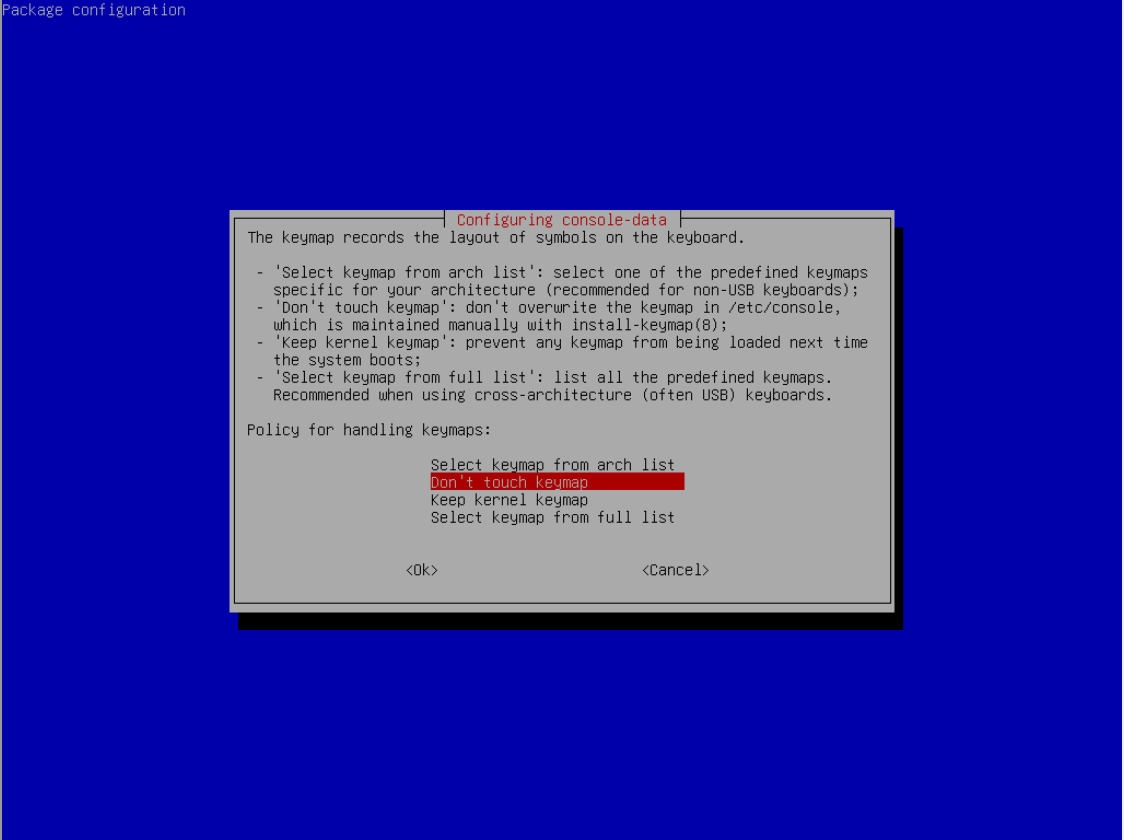
- Follow the prompts to:
- Select a policy and confirm with OK.
- Choose a language (default: 33 for English).
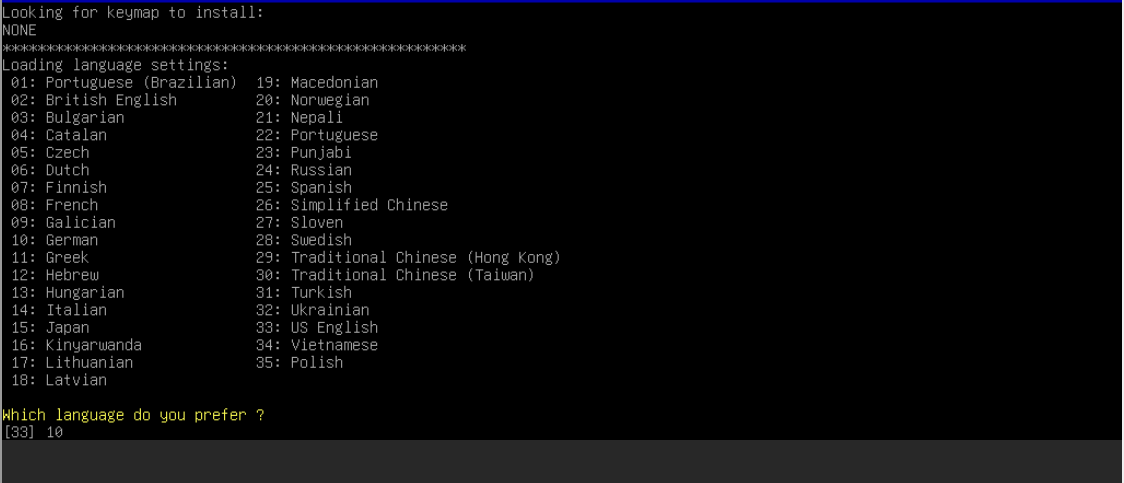
- Enter the start method (default: 0).
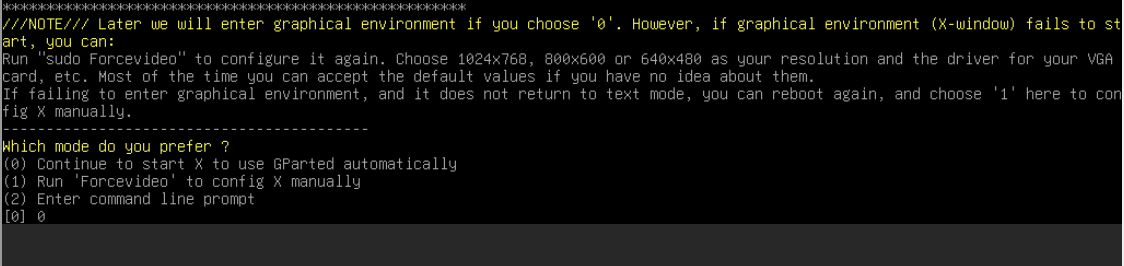
- Select a policy and confirm with OK.
Step 2: Change the Root Password
Access Terminal
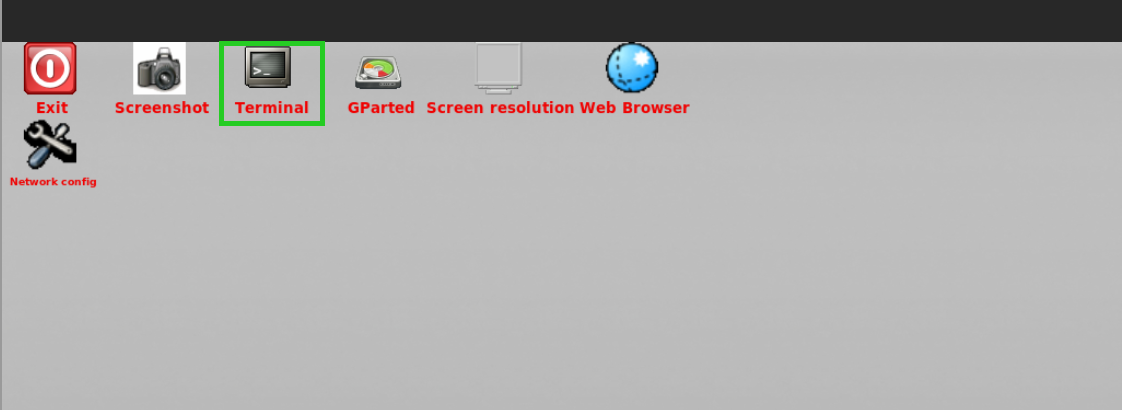
- Close the GParted window (black rectangle).
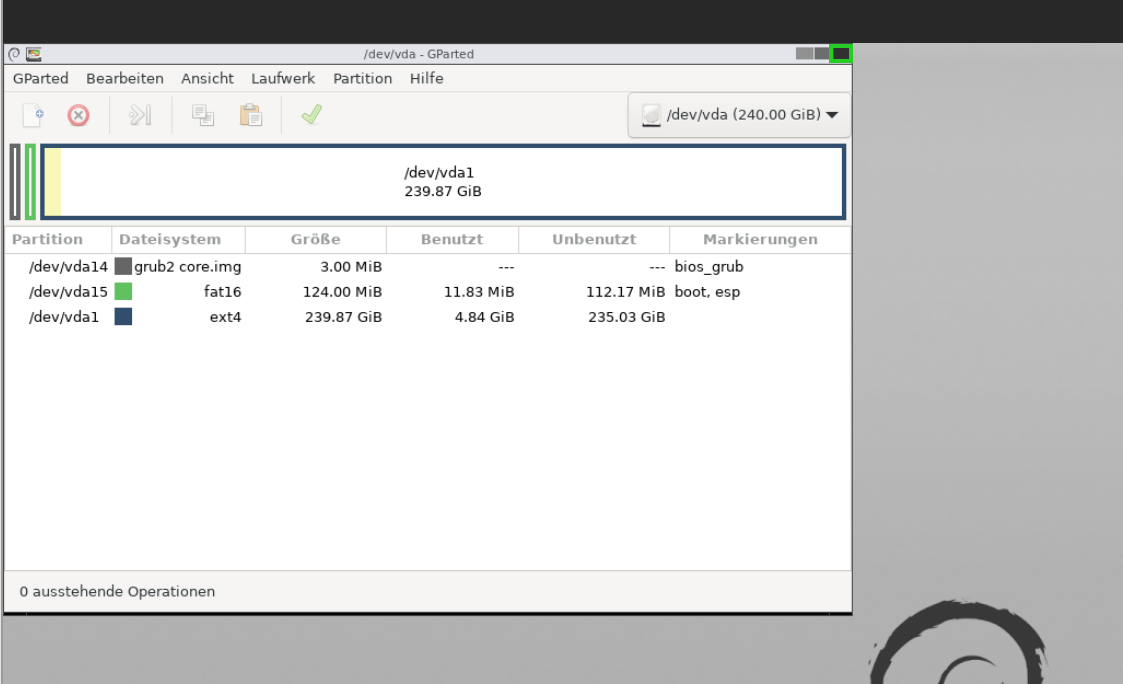
- Open the Terminal program.
- Close the GParted window (black rectangle).
Switch to Root User
user@debian:$ sudo suIdentify the Root File System
- Use
lsblkto display the disk layout:user@debian:$ lsblk - Identify the largest partition (e.g.,
/dev/vda1).
[Insert image: lsblk output with root partition highlighted]
- Use
Mount the Root File System
- Replace
/PATH/PARTITIONwith the root partition:root@debian:/home/user# mount /PATH/PARTITION /mntExample:
root@debian:/home/user# mount /dev/vda1 /mnt
- Replace
Change Directory to Root File System
root@debian:/home/user# chroot /mntReset the Password
- Enter the command:
root@debian:/home/user# passwd root - Type and confirm the new password. (Input will not be visible.)
[Insert image: Successful password reset command]
- Enter the command:
Sync Changes and Unmount
- Exit the chroot environment:
[root@debian:/]# exit - Sync changes:
user@debian:~$ sync - Unmount the root partition:
root@debian:/home/user# umount /PATH/PARTITIONExample:
root@debian:/home/user# umount /dev/vda1
[Insert image: Unmount confirmation in terminal]
- Exit the chroot environment:
Step 3: Restart the Server
Eject the DVD
- Return to the Cloud Panel.
- In Infrastructure > Server, eject the GParted ISO and confirm with Yes.
[Insert image: Ejecting DVD process]
Restart the Server
Click Actions > Restart and confirm with Yes.
Note: The server will restart, and the DVD will be ejected automatically.
[Insert image: Server restart process in Cloud Panel]
By following these steps, you can successfully reset the root password on your VPS or migrated cloud server.